Level: Beginner to Intermediate
Estimated Reading Time: 8–10 Minutes
Introduction
When working with data in Google Sheets, one of the most common problems you will face is unnecessary spaces. These spaces may look harmless, but they can create many problems during data analysis. A single extra space can cause lookup formulas to fail, create duplicate records, produce incorrect Pivot Tables, and generate inaccurate reports.
Imagine you receive a customer list from another department. At first glance, everything looks correct. Customer names, product names, warehouse names, and supplier names all appear to be properly entered. However, some values contain hidden spaces before the text, after the text, or multiple spaces between words. Although these differences are difficult to notice, Google Sheets treats them as different values.
This is where the TRIM function becomes useful.
The TRIM function is one of the first text functions that every beginner should learn because data cleaning is an important part of almost every business process. Whether you work in sales, finance, human resources, supply chain, customer service, or inventory management, clean data helps you create accurate reports and make better business decisions.
In this article, you will learn what the TRIM function does, how it works, why businesses use it, where it should be applied, its advantages and limitations, and how you can use it with practical examples. By the end of this guide, you will understand why experienced data analysts always clean their data before starting any analysis.
What is the TRIM Function?
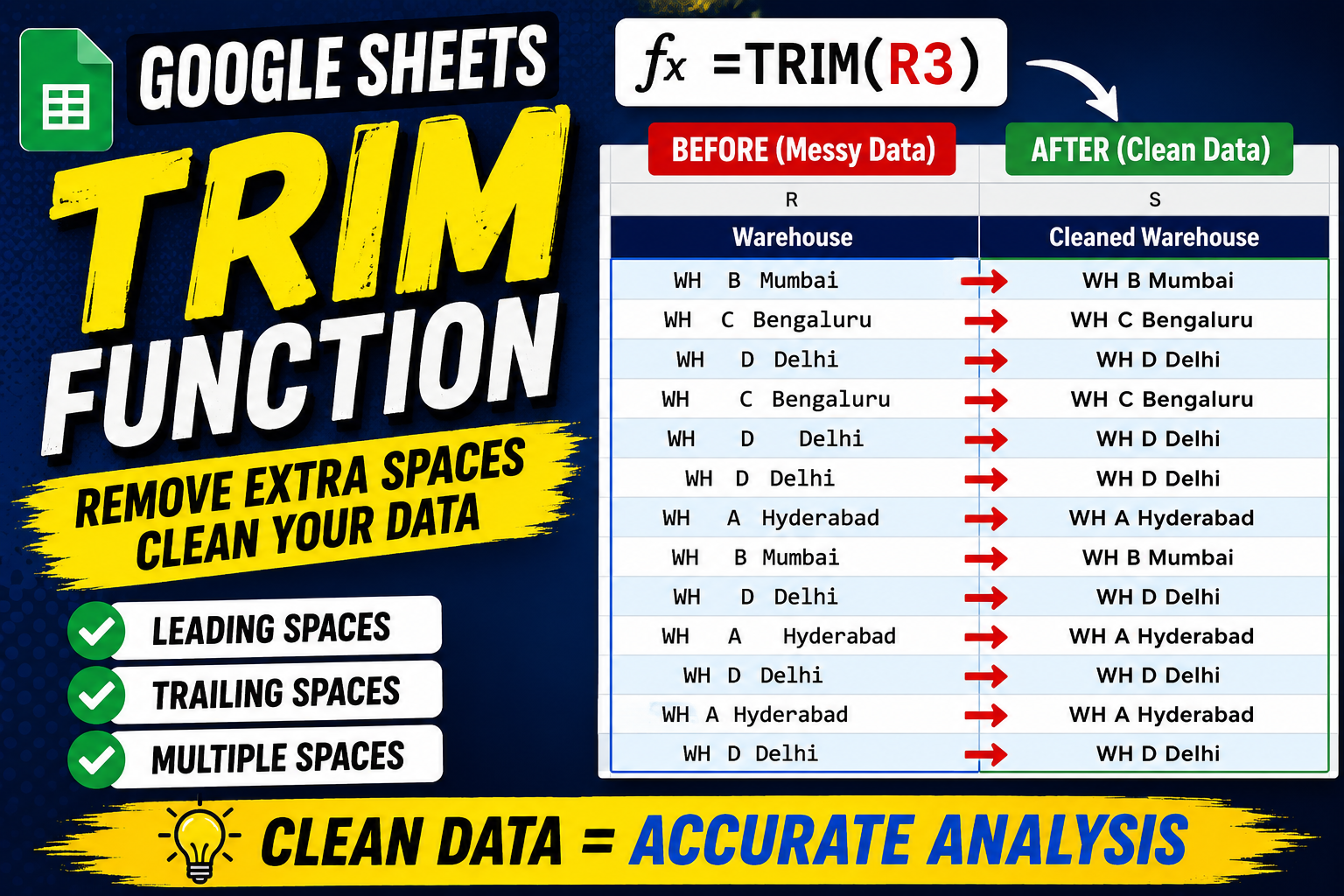
The TRIM function is a text function in Google Sheets that removes unnecessary spaces from text.
It performs three important tasks:
- Removes spaces before the text (leading spaces)
- Removes spaces after the text (trailing spaces)
- Reduces multiple spaces between words to a single space
The goal of the TRIM function is to make text clean, consistent, and ready for analysis.
For example, suppose someone enters a customer’s name like this:
John Smith
Although it looks acceptable, there are several spaces between the first name and last name.
After applying the TRIM function, the result becomes:
John Smith
Now the name contains only one space between the two words, making it clean and consistent.
The same process works for many other types of text, including:
- Customer names
- Product names
- Supplier names
- Warehouse names
- Departments
- Cities
- States
- Countries
- Email addresses
- Comments and remarks
In simple words, if your text contains unnecessary spaces, the TRIM function helps clean it.
Syntax of the TRIM Function
The syntax of the TRIM function is very simple.
=TRIM(text)
Let’s understand each part of the formula.
TRIM
This is the name of the function. It tells Google Sheets that you want to remove unnecessary spaces.
Text
This is the text or cell reference you want to clean.
For example:
=TRIM(A2)
Here, A2 is the cell containing the text.
Google Sheets reads the value inside A2, removes the unnecessary spaces, and returns the cleaned result.
If cell A2 contains:
Laptop Stand
The formula returns:
Laptop Stand
The original data remains unchanged unless you replace it with the cleaned values.
How Does the TRIM Function Work?
To understand TRIM better, let’s look at the three types of spacing problems it solves.
1. Leading Spaces
Leading spaces appear before the text begins.
Example:
Hyderabad
After using TRIM:
Hyderabad
The unnecessary spaces before the word are removed.
2. Trailing Spaces
Trailing spaces appear after the text ends.
Example:
Warehouse A
(with invisible spaces after the letter A)
After using TRIM:
Warehouse A
The extra spaces at the end are removed.
3. Multiple Spaces Between Words
Sometimes people accidentally press the Spacebar several times while typing.
Example:
Human Resources
After using TRIM:
Human Resources
TRIM keeps only one space between the words.
Why Do Extra Spaces Exist?
Many beginners think that extra spaces happen because someone entered the data incorrectly.
In reality, extra spaces appear for many different reasons.
Manual Data Entry
Employees often type information quickly and accidentally press the Spacebar more than once.
Copying Data from Websites
When information is copied from websites, hidden spaces are sometimes copied along with the text.
Importing CSV Files
Many businesses exchange information using CSV files. During import, spacing issues can appear.
ERP Systems
Enterprise Resource Planning (ERP) software stores information from different departments. Data exported from these systems may contain inconsistent spacing.
CRM Software
Customer Relationship Management (CRM) systems collect customer information from different sources. Hidden spaces often appear in names, addresses, and email fields.
Online Forms
Customers entering information through registration forms may accidentally include extra spaces before or after their names.
Supplier Files
Suppliers often send product lists in Excel or CSV format. Different suppliers follow different formatting standards, resulting in inconsistent text.
Multiple Users
Large companies have many employees entering data every day. Each person has their own typing habits, which can create inconsistencies.
For these reasons, experienced analysts rarely assume imported data is clean. Instead, they inspect the data first and clean it before creating reports or dashboards.
Why Clean Data Matters
Imagine you are asked to prepare a sales report for your manager.
The report should show:
- Total sales by city
- Total sales by warehouse
- Total sales by department
If the city name “Hyderabad” appears with extra spaces in some rows, Google Sheets may treat those entries as different values. As a result, the Pivot Table could display multiple versions of the same city, making the report confusing and inaccurate.
The same issue can happen with product names, supplier names, departments, or shipment statuses.
Cleaning the data before analysis helps ensure that reports are reliable and easy to understand.
Practical Business Use Cases of the TRIM Function
Learning a function becomes much easier when you understand why it is used in real situations. The TRIM function is not just for removing spaces; it helps improve the quality of business data and prevents errors during reporting and analysis.
Let’s look at some practical examples where the TRIM function can make a difference.
1. Cleaning Customer Names
Imagine you work in a retail company. Customer information is collected through an online registration form. Some customers accidentally enter spaces before or after their names, while others leave multiple spaces between their first and last names.
Although these names look almost identical, Google Sheets treats them as different values.
For example, a Pivot Table showing the number of unique customers may count the same customer more than once because of hidden spaces.
Using the TRIM function standardizes customer names and makes the data consistent before analysis.
Why it matters
- Accurate customer records
- Better customer reports
- Reduced duplicate entries
2. Cleaning Product Names
Many companies purchase products from different suppliers. Each supplier may follow a different naming style.
One supplier may enter:
Laptop Stand
Another supplier may enter the same product with unnecessary spaces.
When inventory reports are created, the same product may appear multiple times because the names are not identical.
Cleaning product names using TRIM helps create consistent inventory reports.
Why it matters
- Accurate inventory reports
- Better product grouping
- Easier product analysis
3. Standardizing Supplier Names
Procurement departments work with hundreds or even thousands of suppliers.
Sometimes supplier names are copied from emails, spreadsheets, or ERP systems. Hidden spaces may be introduced during this process.
If supplier names are inconsistent, businesses may accidentally create duplicate supplier records.
This increases confusion during purchasing and reporting.
Using TRIM helps maintain a clean supplier master list.
Why it matters
- Better supplier management
- Cleaner procurement reports
- Reduced duplicate records
4. Organizing Warehouse Information
Large organizations often manage inventory across multiple warehouses.
Warehouse names are frequently used in reports and dashboards.
If unnecessary spaces exist in warehouse names, Google Sheets may display the same warehouse multiple times in Pivot Tables.
Instead of showing one warehouse, reports may display several versions of the same warehouse.
Cleaning warehouse names before analysis keeps reports accurate and easy to understand.
Why it matters
- Better warehouse reporting
- Accurate inventory tracking
- Reliable dashboards
5. Cleaning Department Names
Human Resources and Operations teams frequently prepare reports based on departments.
Examples include:
- Sales
- Finance
- Operations
- Human Resources
If hidden spaces exist, reports may show duplicate department names.
Managers may believe there are more departments than actually exist.
Applying TRIM ensures every department is recorded consistently.
Why it matters
- Accurate employee reports
- Better workforce analysis
- Cleaner dashboards
6. Standardizing City and State Names
Sales reports are often grouped by location.
Imagine you want to analyse sales by city.
Some rows contain:
Hyderabad
Other rows contain the same city with extra spaces.
The report may incorrectly separate the same city into multiple groups.
Cleaning city and state names before creating reports prevents this problem.
Why it matters
- Better regional analysis
- Accurate sales reports
- Cleaner Pivot Tables
7. Cleaning Shipment Status
Logistics departments monitor deliveries every day.
Shipment status usually includes values such as:
- Delivered
- Pending
- Returned
- Cancelled
- In Transit
If some records contain hidden spaces, summary reports may produce incorrect totals.
Using TRIM before creating reports keeps shipment information consistent.
Why it matters
- Accurate delivery reports
- Better logistics tracking
- Reliable performance analysis
8. Standardizing Customer Feedback
Many businesses collect customer feedback after completing an order.
Feedback may include comments such as:
- Excellent Service
- Good Experience
- Late Delivery
- Product Damaged
When feedback contains unnecessary spaces, grouping similar responses becomes difficult.
Cleaning the feedback column makes customer satisfaction reports easier to analyse.
Why it matters
- Better customer insights
- Cleaner reports
- Improved decision making
9. Cleaning Email Addresses
Customer email addresses are often imported from websites or marketing platforms.
Sometimes hidden spaces appear before or after the email address.
Although the email address looks correct, it may fail to match customer records.
Cleaning email addresses before importing them into another system improves data quality.
Why it matters
- Better customer matching
- More reliable marketing campaigns
- Cleaner CRM data
10. Cleaning Remarks and Comments
Business users often write remarks while processing orders.
Examples include:
- Urgent Delivery
- Customer Requested Replacement
- Address Verified
- High Priority
These comments are later analysed to identify common issues.
If hidden spaces exist, grouping similar comments becomes difficult.
Using TRIM standardizes the remarks and improves reporting.
Why it matters
- Better operational reports
- Easier comment analysis
- Cleaner business data
One Function, Many Business Uses
One of the biggest advantages of the TRIM function is that the same formula can be applied to many different types of text data.
For example, you can use it for:
- Customer Names
- Product Names
- Supplier Names
- Employee Names
- Department Names
- Warehouse Names
- City Names
- State Names
- Email Addresses
- Shipment Status
- Customer Feedback
- Remarks
- Categories
- Brand Names
Instead of learning a different formula for every column, you can use the same TRIM function wherever unnecessary spaces exist.
A Good Habit for Every Data Analyst
Professional data analysts rarely start analysing data immediately after receiving it.
Instead, they usually follow a simple process:
- Review the dataset.
- Identify data quality issues.
- Clean text columns using functions like TRIM.
- Verify the cleaned data.
- Begin analysis and reporting.
Following this process reduces errors and improves the accuracy of reports.
Think of the TRIM function as one of the first tools in your data cleaning toolkit. It may seem like a small function, but using it at the right time can prevent many problems later in the analysis process.
Benefits of Using the TRIM Function
The TRIM function may look simple, but it offers many benefits when working with business data. Clean data is the foundation of accurate analysis, and removing unnecessary spaces helps improve the quality of your reports.
Let’s look at some of the main benefits.
1. Improves Data Quality
Data quality is one of the most important parts of data analysis. If your data is inconsistent, the reports you create may also become unreliable.
The TRIM function helps standardize text values by removing unnecessary spaces. This makes your dataset cleaner and easier to work with.
For example, if customer names, supplier names, or warehouse names contain extra spaces, cleaning them with TRIM ensures every value follows the same format.
2. Prevents Duplicate Records
Sometimes two values look identical but are actually different because one contains hidden spaces.
For example:
- Rahul Sharma
- Rahul Sharma (with extra spaces)
Although both names appear the same, Google Sheets may treat them as different values.
Cleaning the data with TRIM helps reduce duplicate-looking records and improves the accuracy of your reports.
3. Makes Reports More Accurate
Many business reports group information by categories such as:
- City
- Department
- Product
- Supplier
- Shipment Status
If these values contain unnecessary spaces, reports may display duplicate categories.
Cleaning the text before creating reports helps ensure that similar values are grouped together correctly.
4. Improves Lookup Accuracy
Functions like VLOOKUP, XLOOKUP, INDEX, and MATCH compare text values exactly.
If one value contains hidden spaces and the other does not, the lookup may fail even though both values look identical.
Using TRIM before performing lookups helps reduce matching problems and improves the reliability of your formulas.
5. Creates Better Pivot Tables
Pivot Tables group identical values together.
If the same department or city is written with different spacing, the Pivot Table may display multiple groups instead of one.
Applying TRIM before creating a Pivot Table produces cleaner and more meaningful summaries.
6. Saves Time
Finding hidden spaces manually can be difficult, especially in large datasets.
Instead of checking hundreds or thousands of rows one by one, the TRIM function cleans the data within seconds.
This allows analysts to spend more time analysing data instead of fixing formatting issues.
7. Makes Dashboards More Reliable
Dashboards are built using clean and consistent data.
If text values contain unnecessary spaces, charts and summary tables may display incorrect information.
Cleaning the dataset before building dashboards improves the quality of business insights.
Common Mistakes Beginners Make
Many beginners understand how to use the TRIM function but are unsure when or why to use it.
Here are some common mistakes to avoid.
Mistake 1: Forgetting to Clean Data First
Some users immediately create reports or apply lookup formulas without checking the quality of their data.
Always inspect and clean your text columns before beginning any analysis.
Mistake 2: Expecting TRIM to Fix Everything
The TRIM function only removes unnecessary spaces.
It does not correct spelling mistakes, punctuation errors, or formatting issues.
Understanding the purpose of the function helps you choose the right tool for the problem.
Mistake 3: Ignoring Imported Data
Many users assume imported data is already clean.
In reality, imported data often contains hidden spaces that are difficult to notice.
Cleaning imported data should become a regular habit.
Mistake 4: Replacing Original Data Immediately
It is always a good idea to keep a copy of your original dataset.
If something goes wrong, you can easily return to the original data.
Many analysts create a new column, clean the data there, verify the results, and only then replace the original values.
Mistake 5: Cleaning Only One Column
Sometimes users clean customer names but forget to clean other text columns.
If your dataset contains multiple text columns, inspect all of them.
Extra spaces can exist in product names, suppliers, departments, warehouses, comments, and many other fields.
Limitations of the TRIM Function
Although TRIM is useful, it is not designed to solve every data cleaning problem.
Understanding its limitations is just as important as understanding its strengths.
The TRIM function does not perform the following tasks.
It Does Not Correct Spelling
For example:
“Hyderbad”
will remain
“Hyderbad”
TRIM removes spaces, not spelling mistakes.
It Does Not Remove Special Characters
Characters such as:
- @
- %
will remain unchanged.
If you need to remove unwanted characters, another function such as SUBSTITUTE is more appropriate.
It Does Not Convert Text into Numbers
If a number is stored as text, TRIM will only remove unnecessary spaces.
It will not convert the value into a number.
For that, you may need functions like VALUE.
It Does Not Fix Date Formats
If dates appear in different formats, TRIM cannot standardize them.
Date-related functions are designed for that purpose.
It Cannot Replace Missing Data
If information is missing from a dataset, TRIM cannot create new values.
It only cleans existing text.
Best Practices When Using TRIM
Professional analysts follow simple habits that improve the quality of their work.
Here are some best practices you should follow.
Clean Data Before Analysis
Always clean your dataset before:
- Creating reports
- Building dashboards
- Performing lookups
- Creating Pivot Tables
This reduces the chances of errors later.
Keep a Backup
Before making any changes, save a copy of your original dataset.
This allows you to compare the original and cleaned versions whenever necessary.
Verify the Results
After applying TRIM, quickly review a few rows to confirm the spaces have been removed correctly.
Never assume the cleaning process worked perfectly without checking.
Apply the Same Process to Similar Columns
If you clean Customer Name, don’t forget to inspect other text fields like Supplier Name, Department, City, and Warehouse.
Being consistent improves the overall quality of your data.
Make Data Cleaning a Habit
Professional analysts do not clean data only when a problem appears.
They include data cleaning as a standard step in every project.
Developing this habit early will save time and improve the quality of your analysis.
Frequently Asked Questions
What does the TRIM function do?
The TRIM function removes unnecessary spaces from text. It removes spaces at the beginning and end of the text and reduces multiple spaces between words to a single space.
When should I use the TRIM function?
Use TRIM whenever you receive imported data or notice inconsistent spacing in text fields such as customer names, product names, departments, or supplier names.
Can TRIM remove all spaces?
No.
TRIM removes unnecessary spaces while keeping a single space between words.
If you remove all spaces, words like “Human Resources” would become “HumanResources,” making the text difficult to read.
Does TRIM work with numbers?
TRIM works with text.
If numbers are stored as text with extra spaces, TRIM removes the spaces but does not convert them into numeric values.
Should I use TRIM before Pivot Tables?
Yes.
Cleaning text before creating Pivot Tables helps prevent duplicate-looking categories and improves report accuracy.
Does TRIM permanently change my original data?
No.
TRIM returns a cleaned value in another cell.
Your original data remains unchanged until you replace it.
Can I use TRIM with other functions?
Yes.
TRIM is often combined with other functions as part of a complete data cleaning process.
For example, you may first remove spaces with TRIM and then use other functions to solve different formatting problems.
Key Takeaway
The TRIM function is one of the simplest functions in Google Sheets, but it solves a very common problem found in real-world data.
By removing unnecessary spaces, you create cleaner datasets, improve report accuracy, reduce lookup errors, and make your analysis more reliable.
Learning to clean data before analysing it is one of the best habits you can develop as a beginner.
Practice Exercise
Now it’s time to apply what you’ve learned.
Reading about a function is useful, but practicing it on real data is the best way to understand how it works.
For this lesson, I’ve prepared a practice dataset containing common business data with unnecessary spaces in different text columns. Your task is to identify those spaces and clean the data using only the TRIM function.
Practice Tasks
Using the dataset, clean the following columns:
- Customer Name
- Product Name
- Category
- City
- State
- Sales Representative
- Department
- Supplier Name
- Warehouse
- Shipment Status
- Customer Email
- Customer Feedback
- Remarks
After cleaning the data, compare the results with the original dataset and observe how the text becomes consistent.
Mini Challenge
Once you’ve cleaned all the text columns, try answering these questions.
Challenge 1
How many text columns required the TRIM function?
Challenge 2
Which column had the most spacing problems?
Challenge 3
If you create a Pivot Table before and after cleaning the data, what differences do you notice?
Challenge 4
Which business department would benefit the most from clean data?
There is no single correct answer. The purpose of these questions is to help you think like a data analyst rather than simply applying a formula.
Tips Before Moving to the Next Lesson
Before learning more advanced Google Sheets functions, make these habits part of your workflow.
✔ Always review your data before starting analysis.
✔ Clean text columns before using lookup functions.
✔ Keep a backup of the original dataset.
✔ Verify your cleaned data before deleting the original values.
✔ Remember that data cleaning is not extra work—it is part of the analysis process.
Many beginners spend hours troubleshooting formulas when the real problem is poor data quality. Spending a few minutes cleaning your data can save a lot of time later.
Summary
Let’s quickly review what you’ve learned in this lesson.
You learned:
- What the TRIM function is.
- How the TRIM function works.
- The syntax of the TRIM function.
- How to remove leading spaces.
- How to remove trailing spaces.
- How to reduce multiple spaces between words.
- Why businesses use the TRIM function.
- Practical business scenarios where TRIM is useful.
- The benefits of cleaning text data.
- The limitations of the TRIM function.
- Best practices followed by data analysts.
- How to practice using a real business dataset.
Although the TRIM function is small, it plays an important role in creating clean, reliable, and professional datasets.
What’s Next?
Now that you know how to remove unnecessary spaces, the next step is to learn how to remove or replace unwanted characters.
In the next lesson, we’ll learn the Google Sheets SUBSTITUTE function.
The SUBSTITUTE function helps solve problems that TRIM cannot solve, such as:
- Removing hyphens.
- Replacing underscores.
- Removing special characters.
- Replacing old text with new text.
- Standardizing imported data.
Together, TRIM and SUBSTITUTE form a strong foundation for data cleaning in Google Sheets.
Final Thoughts
Every professional dashboard, report, and business analysis begins with clean data.
The TRIM function may not be the most advanced function in Google Sheets, but it is one of the most useful. It helps remove unnecessary spaces, improves consistency, and makes your data easier to analyse.
As you continue learning Google Sheets, you’ll discover many powerful functions. However, even the most advanced formulas cannot produce reliable results if the underlying data is inconsistent.
That’s why experienced analysts always clean their data first.
Learning the TRIM function is not just about removing spaces—it’s about developing the habit of preparing your data before analysing it.
Make this a part of every project you work on, and you’ll build a strong foundation for more advanced topics in data analysis.
Download the Practice Dataset
Practice is the best way to improve your skills.
Download the KYNOVIX practice dataset and apply the TRIM function to every text column. Compare the original data with the cleaned version and observe the difference.
The more you practice, the more confident you’ll become when working with real business data.
Watch the Complete Video Lesson
If you prefer learning through practical demonstrations, watch the complete YouTube lesson where we solve the same dataset step by step.
The video explains:
- The concept behind the TRIM function.
- Real business scenarios.
- Live demonstrations in Google Sheets.
- Common mistakes to avoid.
- Best practices for data cleaning.
Watching the lesson while practicing with the dataset will help you understand the function much faster.
Continue Learning with KYNOVIX
This lesson is part of the Google Sheets Data Cleaning Series.
Continue your learning journey with the next lesson:
➡ Google Sheets SUBSTITUTE Function – Replace Text with Practical Examples
Every lesson in this series focuses on solving real business problems using simple, practical examples. By following the complete series, you’ll gradually build the skills needed to clean data, analyse information, and create professional reports in Google Sheets.
Thank You for Reading
Thank you for taking the time to read this guide.
I hope this article helped you understand not only how the TRIM function works but also why it is an essential part of real-world data cleaning.
If you found this article useful, consider sharing it with friends, classmates, or colleagues who are learning Google Sheets. Clean data is the foundation of accurate analysis, and mastering simple functions like TRIM is the first step toward becoming a confident spreadsheet user.
See you in the next KYNOVIX lesson. Happy learning!
=TRIM(A2)Download the Practice Dataset
- Customer Name
- Product Name
- Supplier Name
- Warehouse